Touch Interface
This section explains how to access the Control Center, explore the available options, and begin opening media. The touch interface is designed to be intuitive, allowing quick access to tools, inputs, and workspaces using simple gestures.
Opening the Control Center
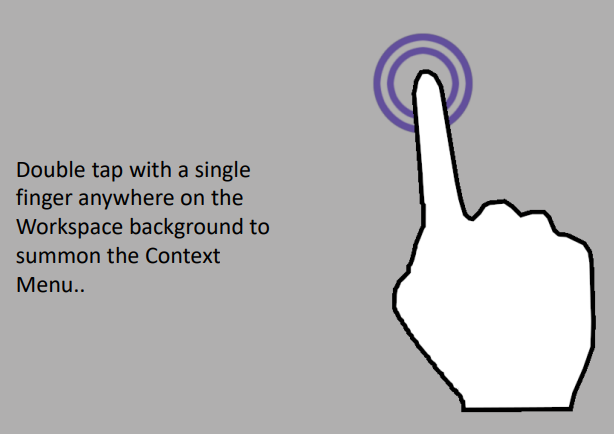
To open the Control Center, double-tap an empty area of the display with one finger. This opens the main navigation hub, shown as a cross-section menu. Each section of the menu provides access to a different function or tool.
Control Center Sections and Functions
Once the Control Center is open, you will see several selectable options arranged around the interface. These options allow you to open media, connect inputs, and configure the environment.
•Media Browser
Opens the media gallery, where you can browse images, videos, PDFs, and other supported media. This is the main area for selecting content to display on the workspace.
•Inputs Center
Allows you to connect and manage live input sources such as laptops, document cameras, or other external devices.
•Whiteboard (Left and Right)
Opens a whiteboard on either the left or right side of the screen, allowing you to view media and sketch or take notes at the same time.
•Sessions Center
Provides access to previously saved sessions, including annotated media and stored work that can be reopened and continued later.
•Settings Center
Gives access to system settings such as grid visibility, background styles, interface preferences, and display behaviour.
•Privacy Mode
Blanks the screen and hides all content. This is useful between sessions, during setup, or when sensitive information needs to be hidden temporarily.
•Annotator
Enables full-screen drawing and annotation tools, allowing you to draw over any visible content.
•Web Browser Center
Opens the built-in web browser so you can access online content directly within the workspace.
Selecting an Option
To open any item in the Control Center, single-tap the required option with one finger. The selected tool or centre will open immediately.
Opening Media and Content Cards
When a centre such as the Media Browser is opened, you will see content cards representing available items. These may include media files, session thumbnails, background templates, or external input sources.
To open a content card:
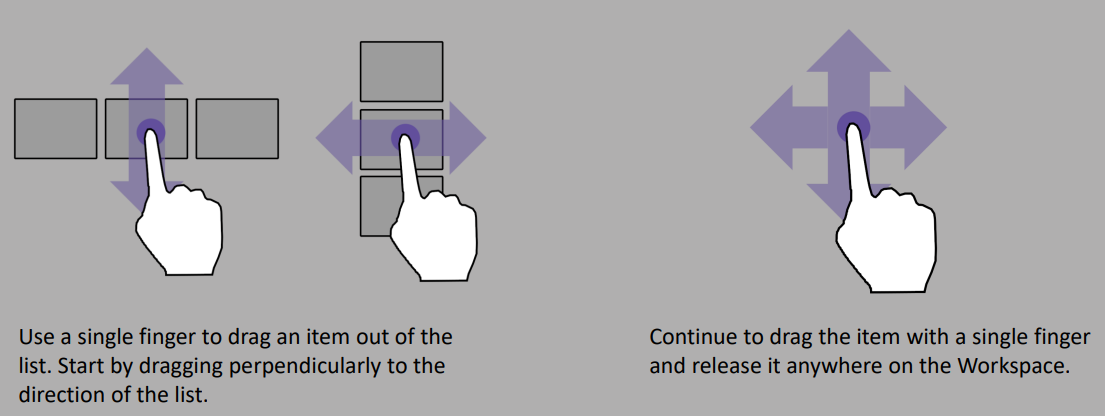
•Place one finger on the card
•Drag it to the desired position on the screen
•Release your finger to open the item
This drag-to-place method allows precise control over where content appears, making it easy to organise multiple items clearly and flexibly on the workspace.