COLL-IN allows you to draw, highlight, and add notes directly on top of media while working. These annotation tools are designed for live discussion, explanation, and feedback, whether you are presenting alone or working with others.
Opening the Media Toolbar
Before you can annotate or edit a media item, you must open its Media Toolbar.
To open the Media Toolbar:
•Tap the media once using two fingers
•The Media Toolbar will appear next to the selected item
If the toolbar does not appear, try tapping again with both fingers at the same time. Two fingers tell the system you want to work with the media itself, not the workspace.
Media Toolbar Options
Close (X)
The Close button removes the media item from the workspace.
•Use this when the media is no longer needed
•Any annotations or notes attached to the media will also be removed
•This action cannot be undone
Make sure you no longer need the media before closing it.
Annotator (pencil icon)
The Annotator opens drawing and marking tools that allow you to write or sketch directly on the media.
•Draw or write freehand on images, documents, or PDFs
•Highlight important areas during a discussion
•Add visual explanations to support your points
Annotations appear on top of the media and can be used during live sessions to improve clarity and engagement.
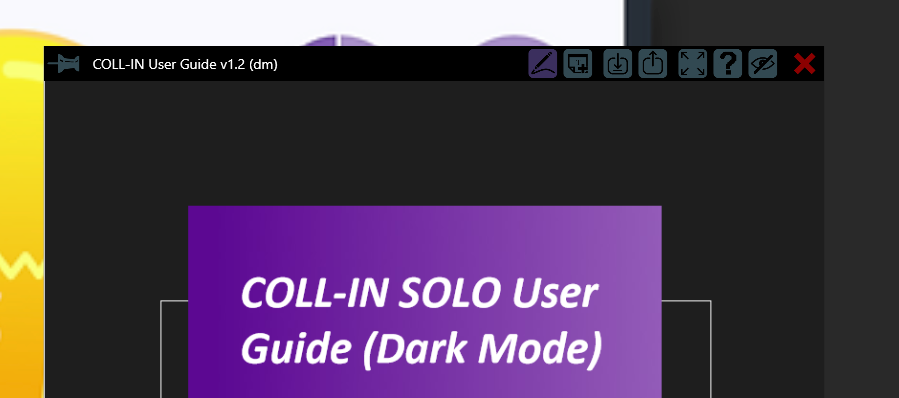
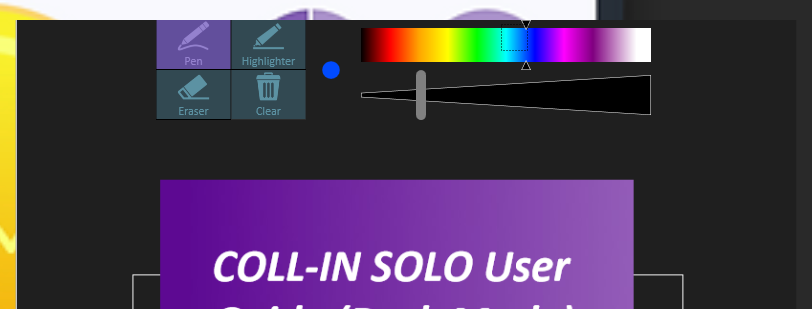
Annotator Interface
When activated, the Annotator displays the following tools:
•Color Picker
Allows you to select from a range of colors. This is useful for coding information—for example, using red for corrections, blue for highlights, or green for approval marks.
•Brush Type Selector
Provides options such as a solid pen, marker, highlighter, or textured brush. Each type gives a different drawing style and can be used for different annotation purposes.
•Brush Size Selector
Adjusts the thickness of your strokes.
oThin strokes are ideal for writing and precise outlining.
oMedium and thick strokes are useful for marking large areas, circling important details, or emphasizing content.
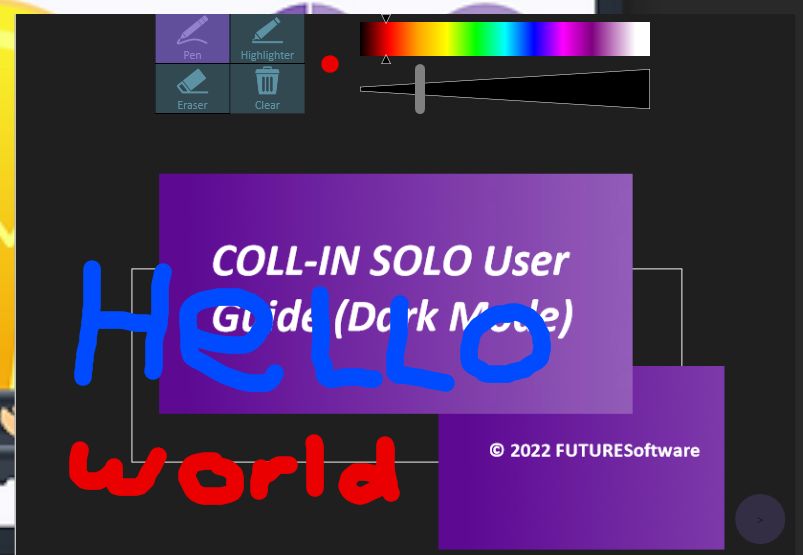
Drawing on Media
Once a brush is selected, simply touch the media with one finger to begin drawing.
•Every contact applies your chosen brush settings.
•You can draw continuously by dragging your finger, or make short strokes for precise marks.
•All drawings are applied directly to the media layer, making them easy to see without blocking the rest of the canvas.
Closing the Annotator
To exit annotation mode:
1.Single-tap the media with two fingers again to reopen the Media Toolbar.
2.Tap the pencil icon a second time to toggle the Annotator off.
Your annotations remain visible on the media until you manually clear or delete them. They will stay in place even if you move or resize the media afterward.
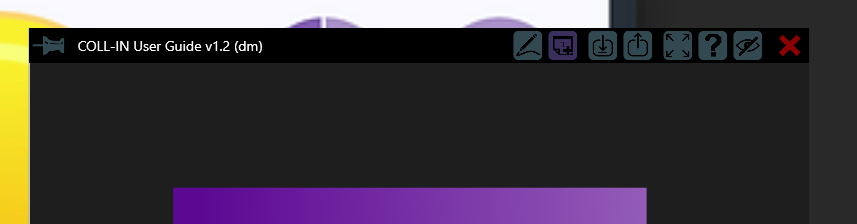
3. Sticky Note Tool (Sticky Note Icon)
The sticky note icon attaches a digital sticky note to the selected piece of media. Sticky notes are useful for adding longer text comments, reminders, or contextual explanations without drawing directly on the image.
Adding and Editing Notes
•After tapping the icon, a small note appears on the media.
•Reposition the note by clicking and dragging it with one finger. The note will remain attached to the media even if the media is moved or rotated.
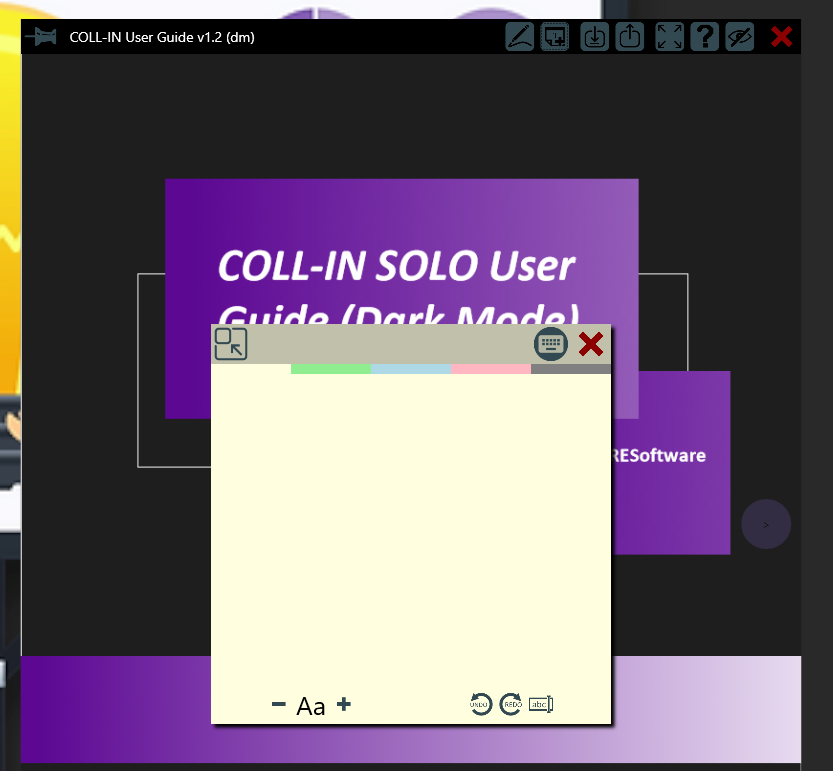
•Tap the note once to bring up the on-screen keyboard. You can then type any text you want—labels, thoughts, instructions, or multi-line explanations.
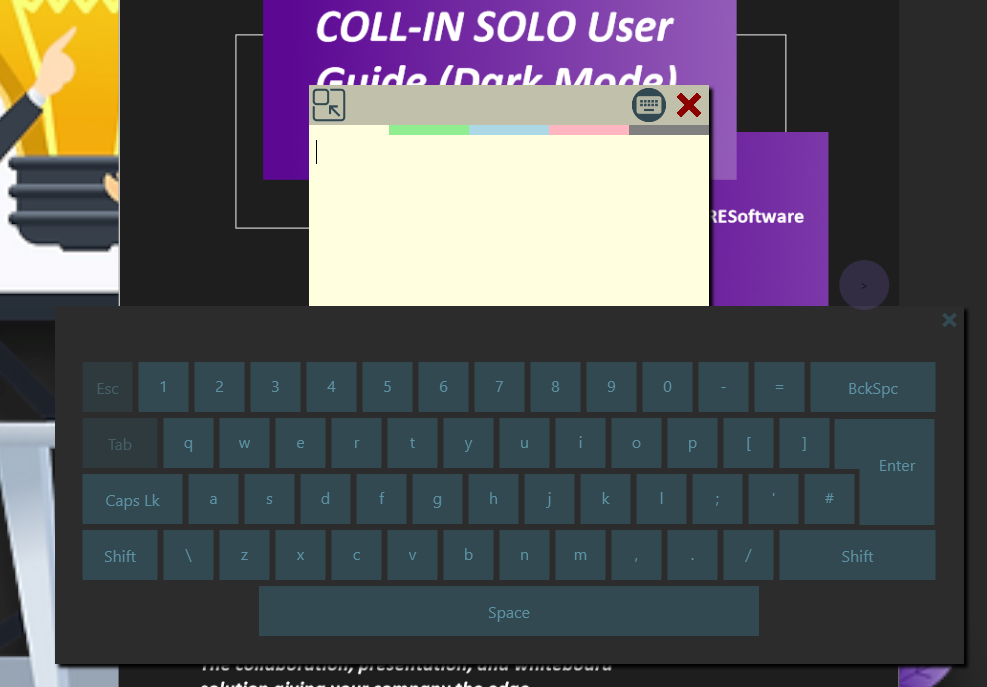
Sticky notes can be resized automatically based on the length of your text, ensuring they remain easy to read without obstructing important parts of the media.
Tips for Effective Media Annotation
•Use contrasting colors when drawing so annotations are clearly visible.
•Place sticky notes along edges of the media to avoid covering critical details while still providing context.
•Organize annotations by color or brush type when working collaboratively to distinguish between contributors.
•Toggle the Annotator off when you're done drawing to avoid accidental marks.
•Practice the two-finger tap gesture—it is central to opening and closing the Media Toolbar efficiently.