Configuring Client Settings
The Client Settings area of the Coll-In Web Portal allows administrators to customise the visual appearance and branding of the connected Coll-In device. From here, you can apply logos, background images, lock screen media, and help text so the system reflects your organisation’s identity.
Client Settings use media stored in the Global Media Library. Before changing these settings, make sure any required images or videos have already been uploaded to the Global Media section.
These settings help ensure the system looks consistent, branded, and easy for end users to recognise and use.
Accessing Client Settings
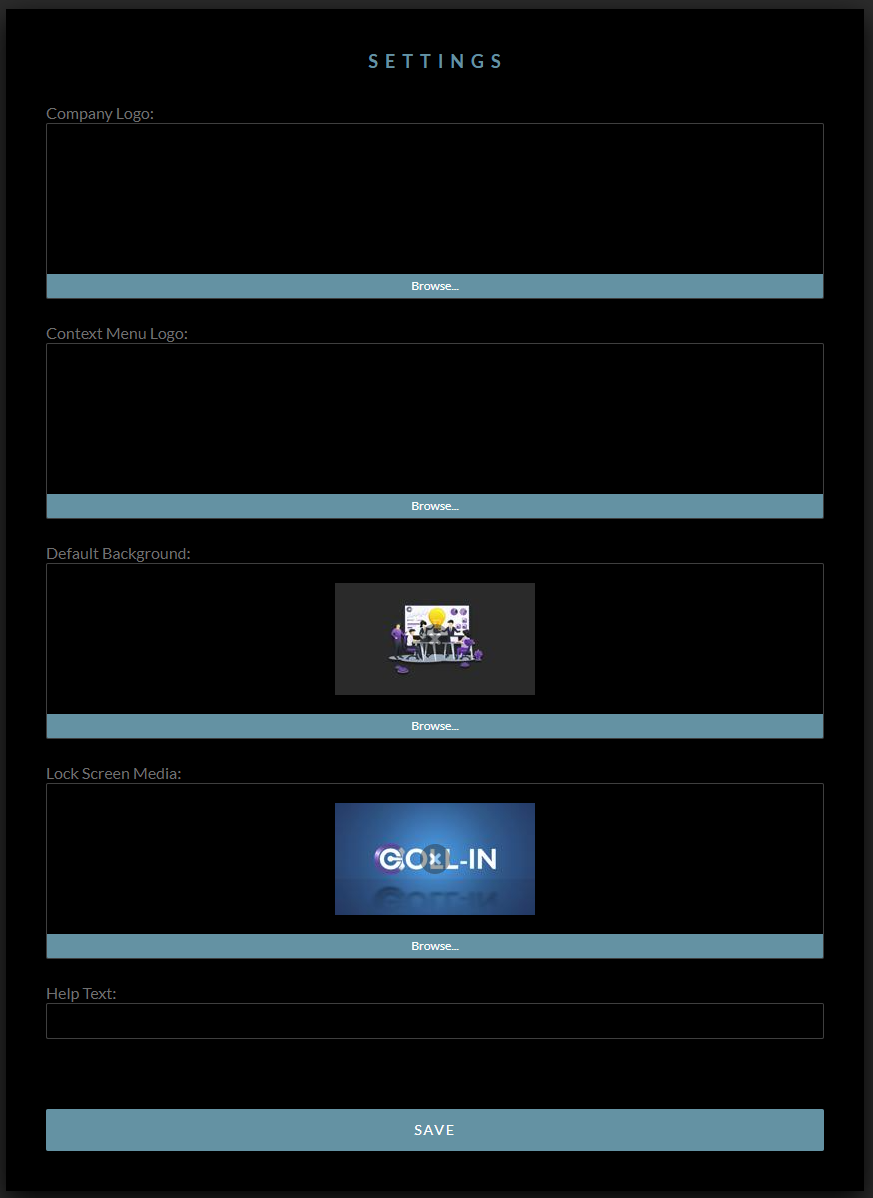
To open Client Settings, log in to the Coll-In Web Portal and select Settings from the main navigation menu. The Client Settings panel will then open.
From this panel, you can configure the following options.
•Company logo
•Context menu logo
•Default background image
•Lock screen media
•Help text displayed to users
If any of these areas appear empty or do not load correctly, refresh your browser and check your network connection.
Only users with administrator permissions can change Client Settings. If this section is not visible, check your account role or contact a system administrator for access.
2. Assigning Logos and Branding Graphics
Branding graphics allow you to apply your organisation’s identity across the Coll-In interface. Logos added here are used in key areas of the system where branding is visible to users.
Company Logo
The company logo appears in areas of the Coll-In interface where organisational branding is required.
To upload or change the company logo:
•Select Browse under the Company Logo option
•Choose an image file from your device, with PNG or JPG formats recommended
•The selected image will appear in the preview area once uploaded
Context Menu Logo
The context menu logo is shown in menu overlays and quick-access panels on the Coll-In device.
To update this logo, follow the same process used for the company logo. For best results, use an image with a transparent background so it displays cleanly across different interface elements.
Setting the Default Background
The default background is the main visual shown when the Coll-In device is idle or not actively presenting content.
Before assigning a background, make sure the image has been uploaded to the Global Media Library.
To set a new default background:
•Locate the Default Background option in the Client Settings panel
•Select Browse and choose the image you want to use
•If a preview is already displayed, selecting a new image will replace it
Choose high-resolution images to ensure the background displays clearly on large screens without distortion or pixelation.
Configuring Lock Screen Media
The lock screen media displays when the system is locked or awaiting interaction.
This media can be a still image or a short looping video (such as MP4).
To set lock screen media:
1.Click Browse… under Lock Screen Media.
2.Select the appropriate media file.
3.A preview will appear in the interface.
Warning: Large video files may increase loading time on certain devices. Use optimized media for best performance.
Updating Help Text
The Help Text field allows you to customise short on-screen messages that guide end users when using the Coll-In device. These messages are typically shown when the system is idle or waiting for user interaction.
When updating the help text:
•Enter a short, clear message in the Help Text field
•Keep the wording simple and easy to understand
•Avoid long sentences or technical language
Common examples include:
•“Tap to Begin”
•“Select a Collection to Continue”
•“Collaborate”
Well-written help text makes the system more intuitive, especially for first-time users
Saving Your Changes
After making changes to Client Settings, review each preview area to confirm that the correct logos, backgrounds, or text are selected.
To apply your changes:
•Select Save at the bottom of the page
•The updated settings will be applied immediately to the connected Coll-In device
If changes do not appear as expected:
•Confirm that the Coll-In device is connected to the network
•Restart the device if required
•Check that any referenced media files were uploaded successfully
Managing Global Media
Global Media is a shared media library used across the Coll-In system. Any media used for Client Settings, such as backgrounds, lock screen content, or logos, must be uploaded here first.
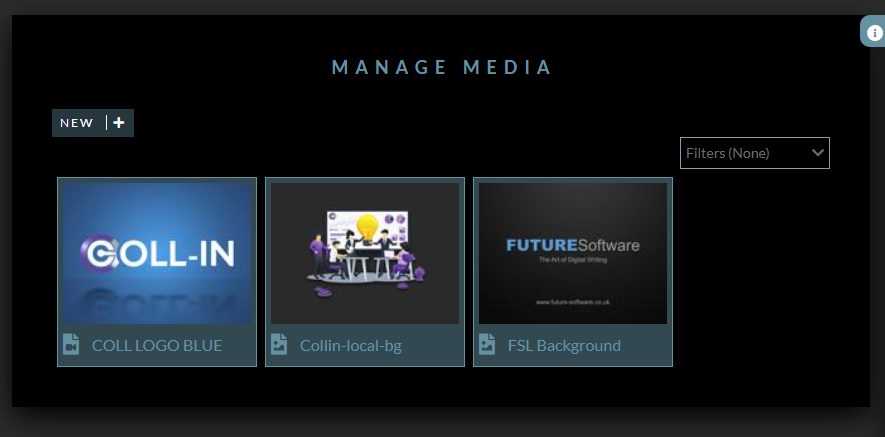
The Global Media section can be accessed from the main navigation menu under Manage Media.
Accessing the Global Media Library
The Global Media Library stores images, videos, and branding assets used across the Coll-In system. To open the Global Media Library, select Manage Media from the main navigation menu. The Media Library will display all previously uploaded global media. Each item appears with a thumbnail preview and the file name beneath it. If the library appears empty, no global media has been uploaded yet.
Uploading New Global Media
Media used in Client Settings, such as backgrounds, lock screen content, or logos, must be uploaded to the Global Media Library before it can be selected. To upload new media:
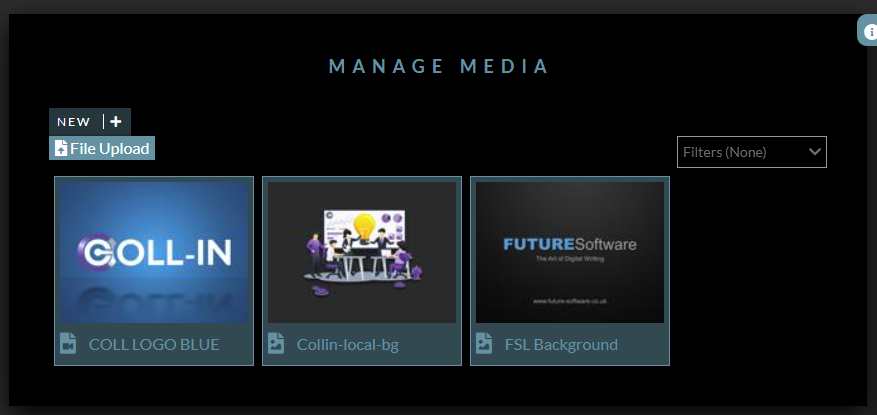
•Select the New or + option at the top of the Media Library
•Choose one or more media files from your device
•Wait for the upload process to complete, as upload time may vary depending on file size
Once uploaded, the media will appear as a thumbnail in the library and will be available for use throughout the system. Supported file formats include:
•PNG and JPG for images
•MP4 for video content
Using clear and descriptive file names makes it easier to identify and manage media later, especially when the library contains many items.
Verifying Media Availability for Client Settings
After uploading media, return to the Settings section of the Web Portal. Files added to the Global Media Library will now be available for selection when assigning the following Client Settings:
•Default background
•Lock screen media
•Company logo
•Context menu logo
If a file does not appear in the selection list:
•Confirm the upload completed successfully
•Refresh the Settings page
•Check that the file is in a supported format
Summary
The Client Settings and Global Media sections work together to control the visual appearance of the Coll-In device. By uploading media to the Global Media Library and selecting it within Client Settings, administrators can apply logos, backgrounds, lock-screen visuals, and on-screen help text to create a consistent and branded user experience.