User Permissions
User permissions in the Coll-In Web Portal control what each user can see and do within the system. This includes access to media, collections, settings, and administrative functions.
Managing user permissions correctly helps keep the system secure and organised, particularly in environments where multiple people are working with shared content.
Administrators can create new users, assign roles, and manage existing accounts to ensure everyone has the appropriate level of access.
Accessing User Management
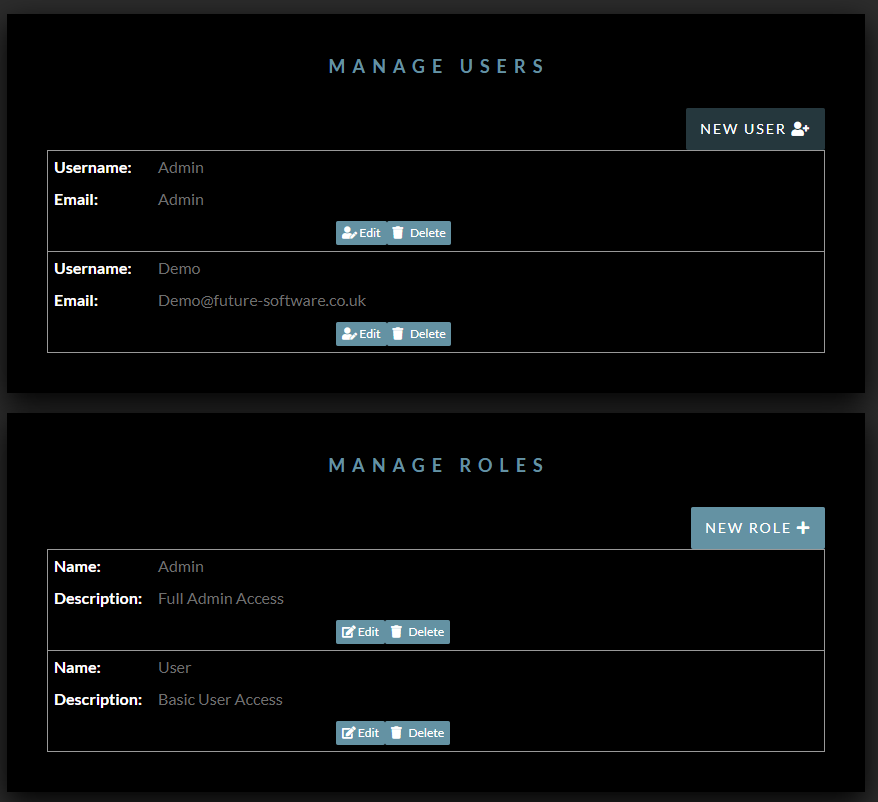
To manage users, open the User Management area in the Web Portal. This section displays a list of all existing user accounts and provides options to create, edit, or remove users.
If the User Management section is not visible, your account may not have administrator permissions. In this case, contact a system administrator for access.
Creating a New User
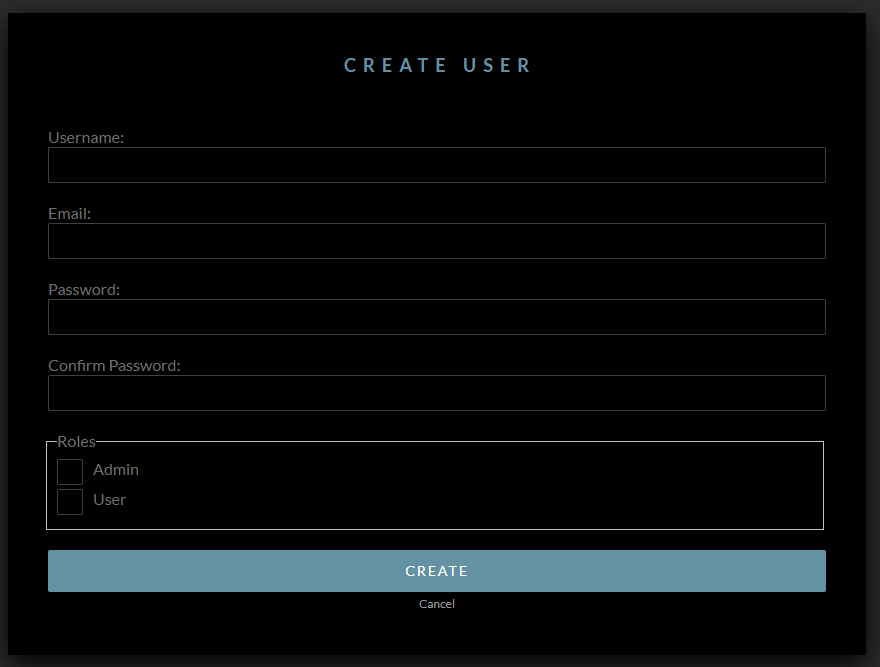
New users are added from the User Management area. When creating a user, you will be asked to enter the account details needed for access and security.
These details include the username the person will use to log in, an email address if required, a password, and a PIN. The PIN provides an additional layer of security within the Coll-In system.
You will also need to assign a role to the user. Roles determine what the user can do within the system, such as whether they can manage content, change settings, or administer other users.
Make sure all details are entered carefully and that password and PIN values match their confirmation fields. Once complete, confirm the action to create the user. If you decide not to proceed, you can cancel and return to the user list without saving any changes.
Managing Existing Users
Existing users can be reviewed and updated from the User Management area. Depending on your permissions, you may be able to edit user details, change roles, or remove accounts that are no longer required.
Regularly reviewing user access helps maintain security and prevents unused or duplicate accounts from remaining active
Assigning User Roles
User roles define what each user is allowed to do within the Coll-In Web Portal. Roles control access to media, collections, system settings, and administrative functions.
Using roles helps keep the system secure and ensures users only have access to the tools they need.
Admin
Administrators have full control of the system. This role should only be assigned to trusted users.
•Full access to all system features
•Create, edit, and delete media, folders, collections, and users
•Modify system settings
•Create, edit, and manage user roles
Collaborator
Collaborators can work with content but do not manage the system itself.
•Access media and collections
•Upload and organise content
•Limited or no access to system and administrative settings
When creating a new user, roles are assigned in the Create User form. Locate the Roles section and select the role or roles you want the user to have. If your system supports multiple roles per user, more than one role can be assigned.
Only grant Admin access to users who require full system control.
Managing Existing Users
The User Management area displays all existing user accounts. From here, administrators can review and update user details as needed.
Depending on your permissions, you may be able to:
•Edit user details such as user name, email address, password, or PIN
•Change assigned roles to adjust access
•Remove users who no longer require access
Before deleting a user, make sure any important media or collections they were responsible for are reassigned or secured.
Managing User Roles
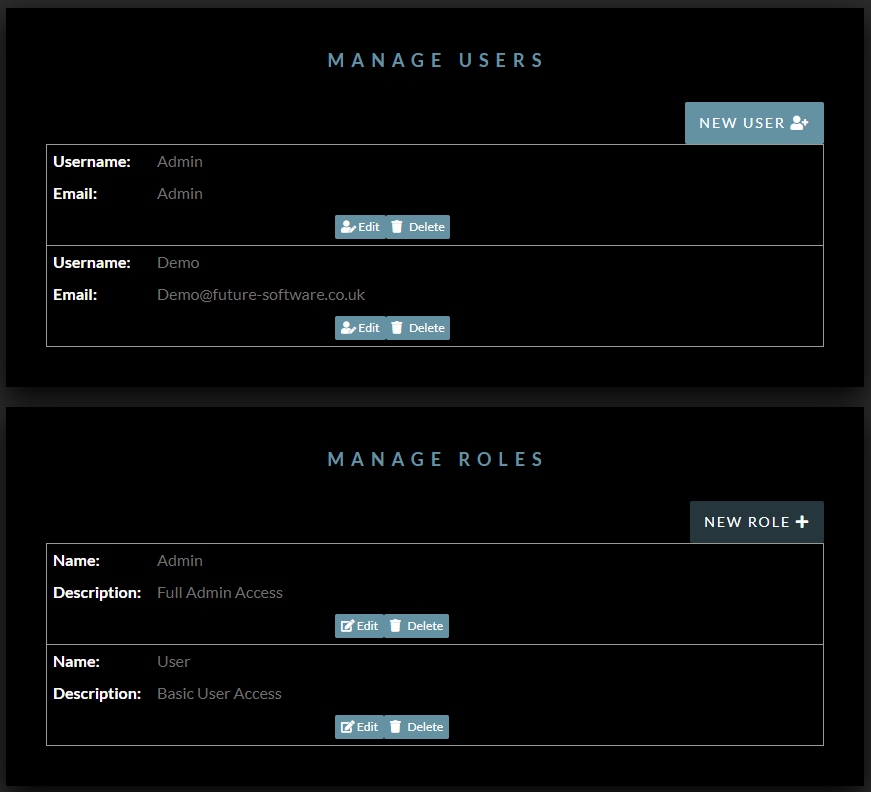
Roles can be managed from the Manage Roles area of the Web Portal.
From here, authorised users can:
•View existing roles such as Admin and Collaborator
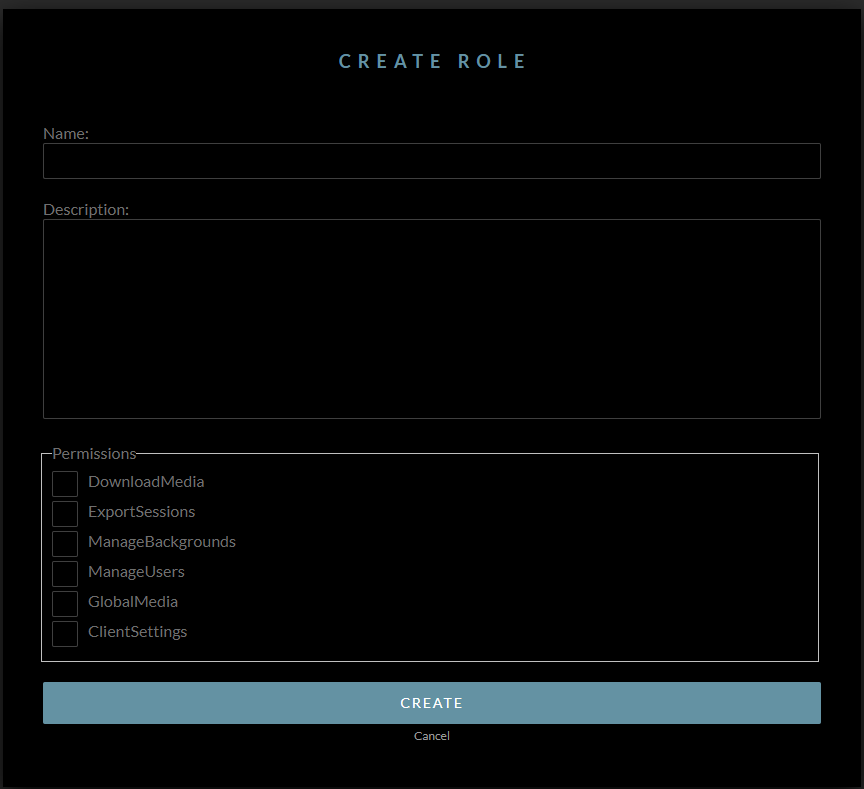
•Edit role names or permissions
•Delete roles that are no longer required
•Create new roles to suit specific needs, such as presenter or content manager
When creating or editing roles, use clear names and descriptions so it is obvious what level of access each role provides.
Be careful when changing or deleting roles that are already assigned to users, as this may affect their ability to access key parts of the system.
Security and Permission Tips
•Assign the minimum level of access required for each user to maintain system security
•Update user passwords and PINs regularly, especially in shared or high-traffic environments
•Remove unused accounts promptly to prevent unauthorised access
•Keep a simple record of your permission structure so team members understand who has access to which areas
Summary
Setting user permissions in the Coll-In Web Portal ensures that each team member has the appropriate level of access while keeping the system secure. By creating user accounts, assigning roles carefully, and reviewing permissions regularly, you can maintain an organised, secure environment that supports your team’s needs.