The Web Portal
The Coll in Local Web Portal runs directly on the Coll in device and can be accessed from any computer, tablet, or mobile device connected to the same local network.
Accessing the Web Portal allows you to upload media, organise content, manage user access, and prepare collections for presentations.
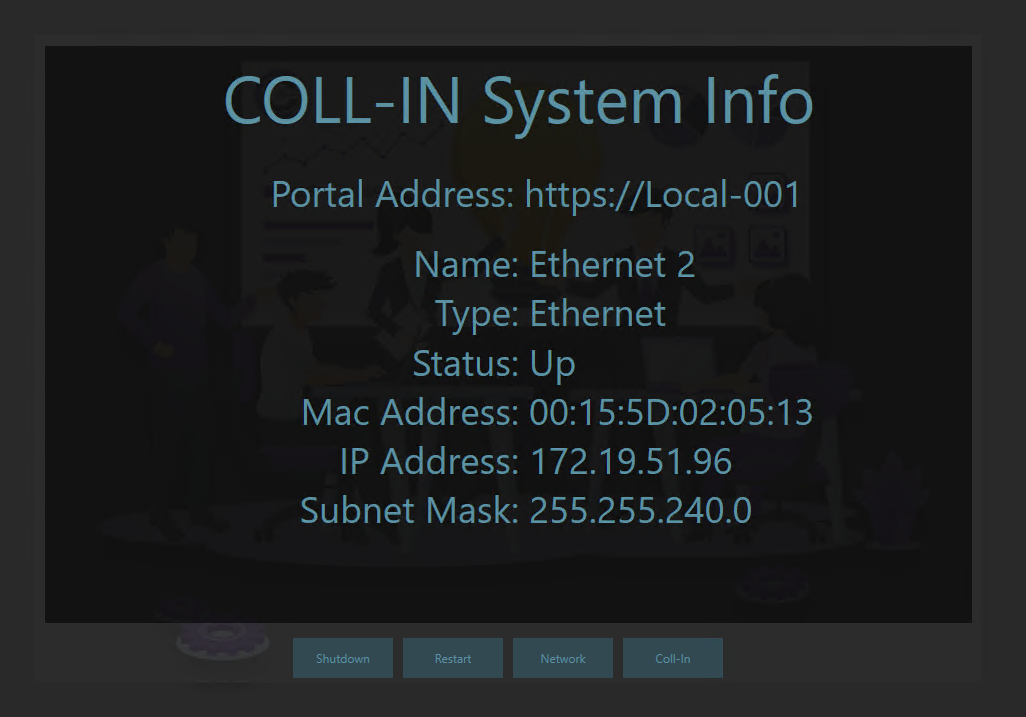
Before accessing the Web Portal, make sure the Coll in device is powered on and connected to your local network. When the device has finished starting up, a splash screen will appear on the connected display showing the network name, the Web Portal address, and the IP address of the device.
You will need this information to connect to the Web Portal from your own device. If this information does not appear, check the network connection and restart the Coll in device if required
TIP
if the network name or Web Portal address does not appear, check that the Coll in device is connected using Ethernet or WI-FI Restart the device if required and confirm the network connection is active.
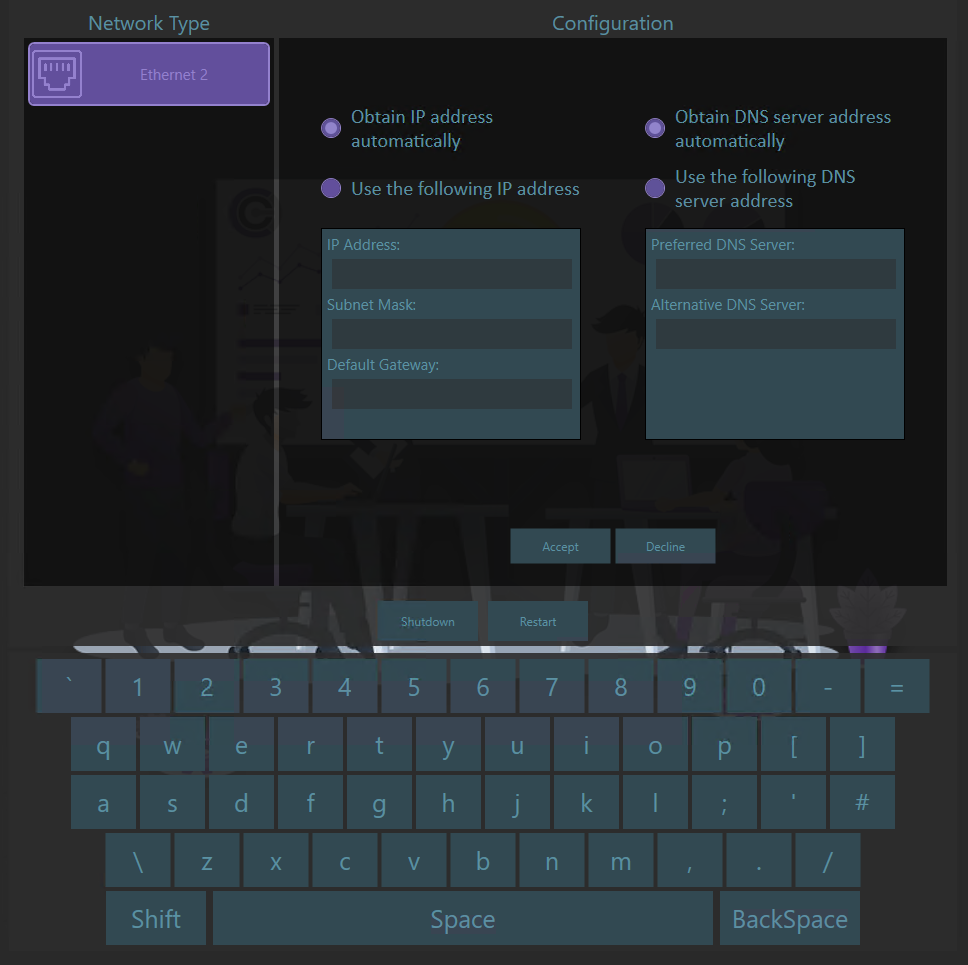
Connect Your Personal Device to the Same Network
To access the Web Portal, your personal device such as a laptop, tablet, or smart phone must be connected to the same network as the Coll in device.
•Open the network or Wi Fi settings on your device and select the same network name that is shown on the Coll in splash screen. Wait until your device confirms that it is connected successfully.
•Once connected, make sure your device has access to the local network. An internet connection is not required, but the device must be able to communicate with other devices on the network.
If you are using a corporate or secured network, local device access may be restricted. In this case, check that local network communication is allowed or contact your IT team for assistance
Open the Web Portal on Your Device
Once your device is connected to the correct network, open a web browser such as Chrome, Edge, Firefox, or Safari.
In the address bar at the top of the browser, enter the Web Portal address shown on the Coll in splash screen. This will be either a local web address or a numeric IP address.
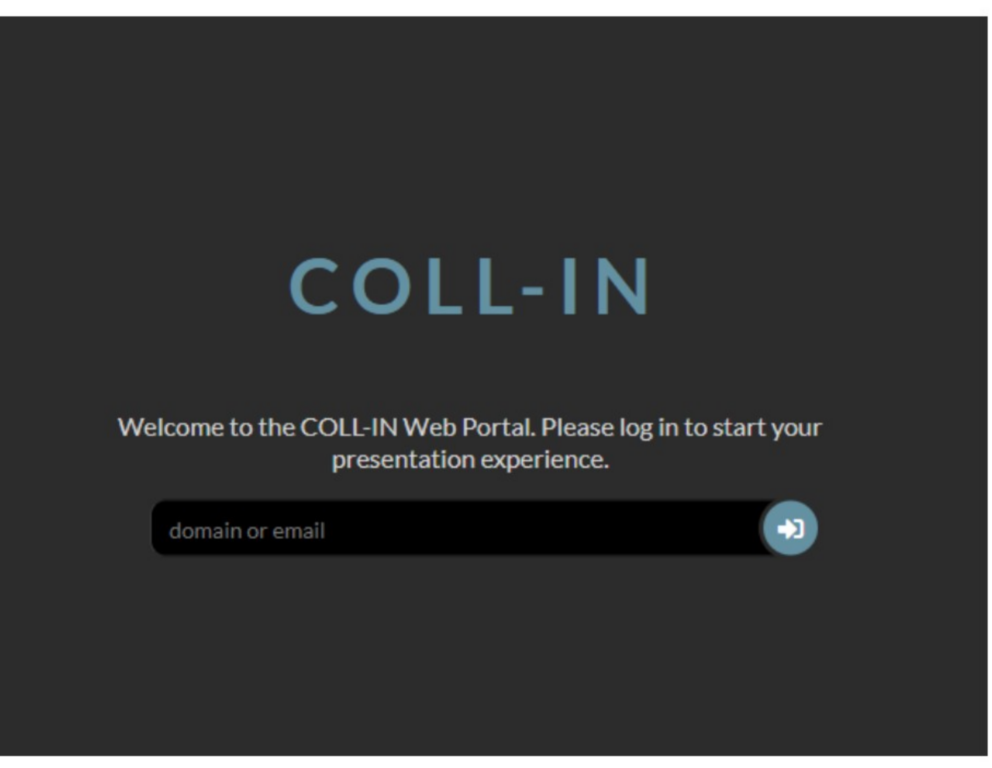
After entering the address, press Enter. The Coll in Web Portal login page should appear on your screen.
Log In to the Web Portal
When the Web Portal login screen appears, enter your login details to continue.
If this is your first time connecting to the Coll in system, use the default administrator login details provided with the system. After logging in for the first time, you will be prompted, or strongly advised, to change the default password to keep the system secure.
If the system has already been set up, log in using the user name and password assigned to you. If you are unsure of your login details or need access created, contact your system administrator.
Once you have logged in successfully, the Web Portal dashboard will open. From here, you will have access to the tools and features available to your user role.
Verify Access and Connectivity
After logging in, the Web Portal dashboard should load and display the main areas of the system. You should be able to see sections such as media, collections, settings, and user management, depending on your access level.
If some sections are not visible, your account may have limited permissions. In this case, contact your system administrator to request the appropriate access.
If the page takes a long time to load or disconnects repeatedly, check that your network connection is stable. If you are using Wi Fi, switching to a wired Ethernet connection may improve performance. Restarting both the Coll in device and your personal device can also help resolve connection issues.
Security and Access
For security reasons, change the default administrator password as soon as the system is first set up.
Always log out of the Web Portal when you have finished using it, especially if you are working on a shared or public computer.
Keeping your web browser up to date helps ensure the best compatibility and security when using the Web Portal. If you experience repeated connection issues, check your firewall settings or contact your IT department to confirm that local network discovery is enabled.
Summary
Accessing the Coll in Web Portal is the first step in managing and presenting your media. By making sure both the Coll in device and your personal device are connected to the same network, entering the correct Web Portal address, and logging in with your details, you gain access to the tools needed to organise content, prepare presentations, and manage system settings.